🖨️ 1. Visual Print Symptoms
These are the first and easiest signs:
- Faded prints or uneven colors.
- White streaks or missing lines in text or images.
- Blurry or patchy prints, especially near page edges.
- Completely blank pages, even though the printer seems to run normally.
💡 Try cleaning the printhead (from your printer settings) once — if the issue persists, the cartridge is likely empty.
💻 2. Check Ink or Toner Level from Printer Software
Most printers show ink or toner status:
- On your computer screen (via printer software or control panel).
- On printer’s display panel (for models with a digital screen).
- In the printer’s web interface (enter printer IP in browser for network models).
Example:
- HP → “HP Smart” app → Supply Levels
- Canon → “Canon IJ Utility” → Ink Details
- Epson → “Epson Status Monitor”
- Brother → “ControlCenter” → Toner Level
⚙️ 3. Physical Cartridge Inspection
If your printer doesn’t show levels:
- Inkjet: Remove the cartridge carefully.
- Shake gently — if it feels light and you don’t hear ink movement, it’s empty.
- Nozzle area looks dry or crusted — ink exhausted.
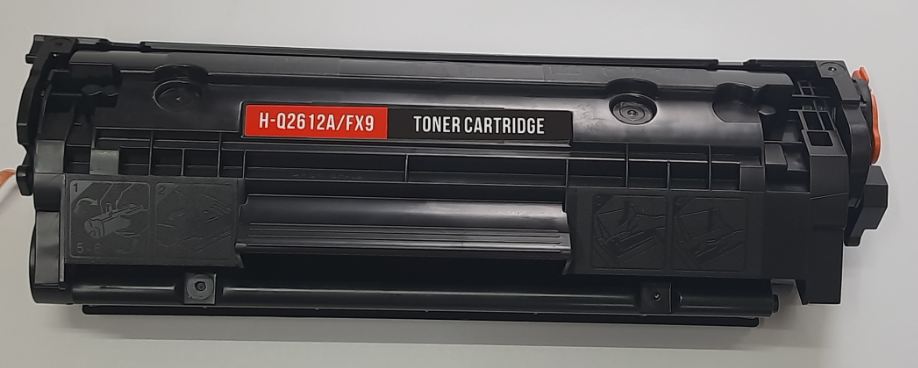
- Laser toner: Shake gently side-to-side — if no toner sound or prints fade immediately after shaking, the toner is exhausted.
🔋 4. Printer Warning or Error Message
Printers usually display:
- “Low ink” or “Replace cartridge” message.
- A flashing or solid ink/toner warning light.
- Some HP and Canon models even stop printing until you replace the cartridge.
🌱 5. Pro Tip – Refill or Replace Early
Don’t wait until the cartridge runs completely dry — it can:
- Dry out printheads (inkjet).
- Damage the drum unit (laser).
- Cause air bubbles, affecting future refills.
Best practice: Refill when around 10–20% ink remains.